Developer Guide for the Wolvenkit projects
WolvenKit on GithubDev chat on Cyberpunk 2077 Modding Community Discord
Purpose
Docs are always outdated. Docs near code are the least outdated.
Getting Started
- First, read the README
- Read the Contributing Guidelines
- Read through the Redmodding Wiki, especially
- WolvenKit section which includes the CP2077 Tools docs as well
Tools
- Git
- On Windows use the installer,
winget, or the Scoop or Chocolatey package managers
- On Windows use the installer,
- A GitHub Account
- Visual Studio 2022 Community Edition (free)
Debugging
Logs
- User-facing log: visible in the app (View > Log)
- Application logs: located in
%appdata%\REDModding\WolvenKit
Non-print-based debugging
It’s easiest to debug using Visual Studio.
- Switch to the Debug profile, then Debug:

- Set breakpoints and stuff to stop execution at appropriate points..
If you don’t have VS available, or you’re helping someone else, the application log (see above) is a good place to get more info
Profiling
Use Visual Studio. The default options should work for the most part, but TODO: shared profiling config/info
- Debug > Performance Profiler
- You’re probably mostly interested in these options:
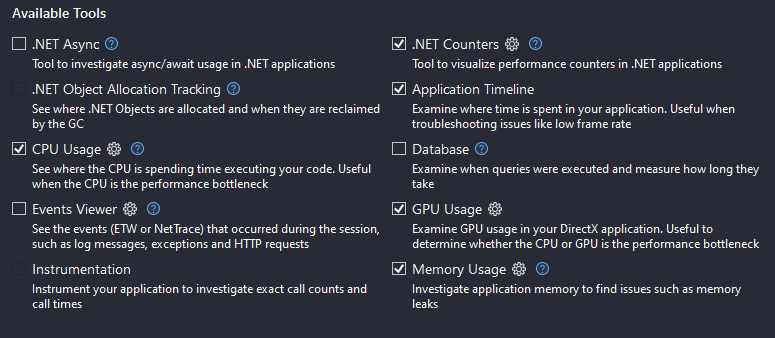
- Click
Start - Do stuff that you want to profile
- When done, click the End Profiling button
- Creating the diagnostic data can take A LONG TIME, be patient
- See what you can see. Typically interesting counters are
- Layout (especially if the GUI feels slow)
- Function timings (especially the self time if you’re looking for slowness)